

Copying selected posts from one WordPress website to another is a common requirement when redesigning a site, launching a new blog, or managing multiple WordPress installations. The good news? WordPress offers simple built-in tools and powerful plugins to make this process smooth – even if you’re not a developer.
In this guide, you’ll learn multiple proven methods to copy selected WordPress posts safely, without losing content, images, or SEO value.
Method 1: Using WordPress Built-in Export & Import Tool (Recommended)
This is the easiest and safest method for most users.
Step 1: Export Selected Posts
- Log in to your source WordPress site
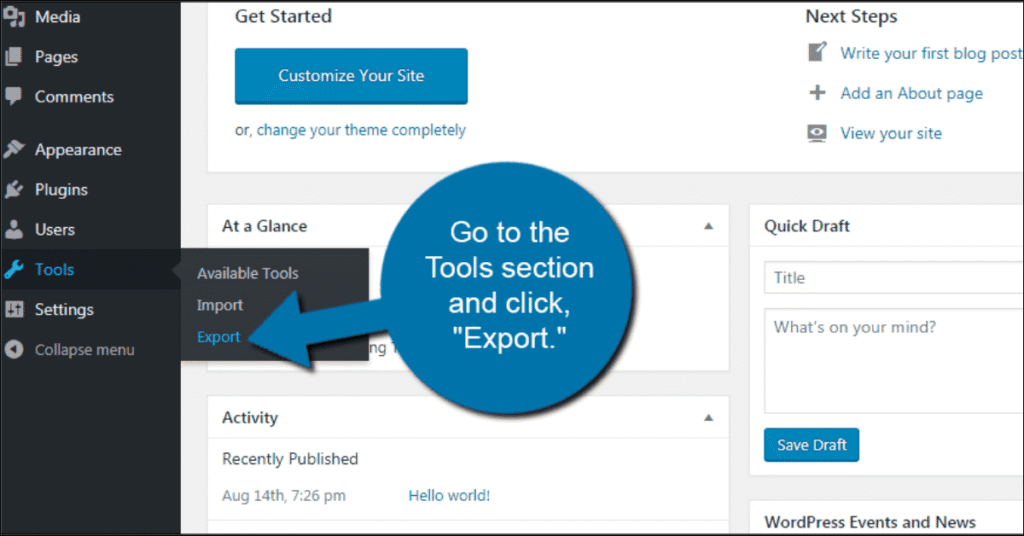
- Go to Tools → Export
- Choose Posts
- Filter by:
- Categories
- Authors
- Date range
- Status
- Click Download Export File
Step 2: Import Posts to the New Website
- Log in to the destination WordPress site
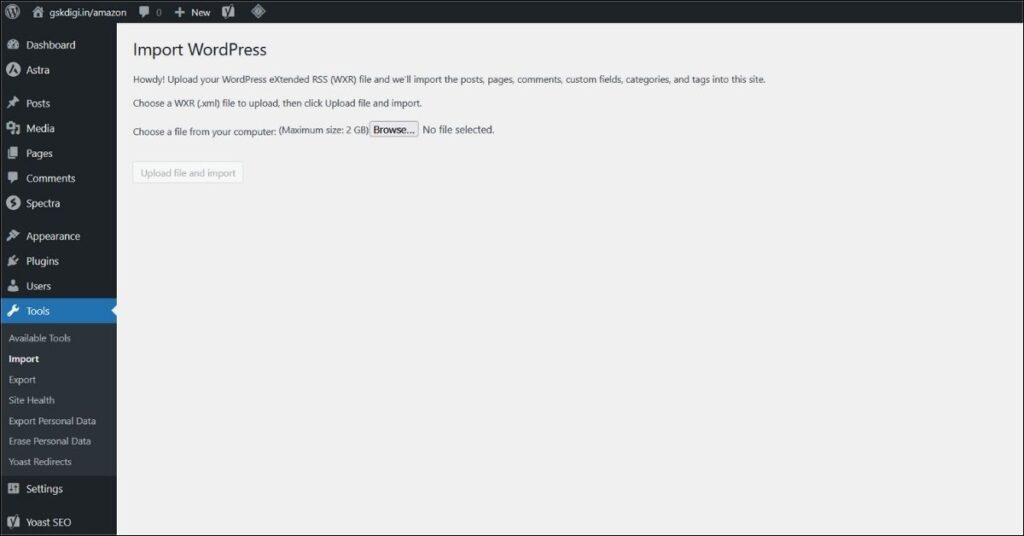
- Go to Tools → Import
- Select WordPress
- Install the importer (if prompted)
- Upload the exported
.xmlfile - Assign authors and check “Download and import file attachments”
✅ This method preserves:
- Post content
- Categories & tags
- Featured images
- Authors
Method 2: Copy Posts Using a WordPress Plugin (Best for Large Sites)
If you frequently migrate content or manage multiple sites, plugins save time.
Recommended Plugin: WP All Export & WP All Import
- Export only selected posts
- Supports custom fields, SEO data, and images
- Ideal for large or complex sites
👉 How to Migrate Your WordPress Site with WordPress Duplicator Plugin
Method 3: Manual Copy-Paste (For Few Posts Only)
This works only if you have 2–3 posts.
- Open the post in the source site
- Copy content from the editor
- Paste into a new post on the destination site
- Re-upload images manually
⚠️ Not recommended for SEO-critical or image-heavy posts.
Method 4: Copy Posts Between Sites Using Hosting Tools
Many premium hosting providers offer site migration tools.
Recommended Hosting for WordPress Migrations
Fast hosting ensures smoother imports without timeouts.
Important SEO Tips After Copying Posts
✔ Update internal links
✔ Check image URLs
✔ Avoid duplicate content (noindex old posts if needed)
✔ Regenerate XML sitemap
✔ Resubmit sitemap in Google Search Console
Useful Tools to Make Migration Easier
| Purpose | Tool |
|---|---|
| Faster imports | High-performance hosting |
| Bulk content handling | WP All Import |
| SEO safety | Rank Math / Yoast |
| Image handling | Media Cloud |
Conclusion
Copying selected posts from one WordPress website to another doesn’t have to be complicated. For most users, the built-in Export & Import tool is more than enough. If you manage larger sites or want automation, plugins and premium hosting make the process seamless.
Whether you’re redesigning, migrating, or scaling – choose the method that best fits your workflow and SEO goals.